> ## Documentation Index
> Fetch the complete documentation index at: https://docs.kubex.ai/llms.txt
> Use this file to discover all available pages before exploring further.

# Viewing Policy Settings

export const Carousel = ({images = []}) => {
  const [currentIndex, setCurrentIndex] = useState(0);
  const scrollContainerRef = useRef(null);
  const scrollTimeoutRef = useRef(null);
  const goToSlide = slideIndex => {
    if (scrollContainerRef.current) {
      const scrollWidth = scrollContainerRef.current.offsetWidth;
      scrollContainerRef.current.scrollTo({
        left: scrollWidth * slideIndex,
        behavior: 'smooth'
      });
      setCurrentIndex(slideIndex);
    }
  };
  const scrollNext = () => {
    goToSlide(currentIndex >= images.length - 1 ? 0 : currentIndex + 1);
  };
  const scrollPrev = () => {
    goToSlide(currentIndex <= 0 ? images.length - 1 : currentIndex - 1);
  };
  const handleScroll = () => {
    if (scrollTimeoutRef.current) {
      clearTimeout(scrollTimeoutRef.current);
    }
    scrollTimeoutRef.current = setTimeout(() => {
      if (scrollContainerRef.current) {
        const scrollLeft = scrollContainerRef.current.scrollLeft;
        const scrollWidth = scrollContainerRef.current.offsetWidth;
        const newIndex = Math.round(scrollLeft / scrollWidth);
        setCurrentIndex(newIndex);
      }
    }, 150);
  };
  useEffect(() => {
    const scrollContainer = scrollContainerRef.current;
    if (scrollContainer) {
      scrollContainer.addEventListener('scroll', handleScroll);
    }
    return () => {
      if (scrollContainer) {
        scrollContainer.removeEventListener('scroll', handleScroll);
      }
    };
  }, []);
  if (!images || images.length === 0) {
    return null;
  }
  return <div className="carousel-wrapper">
            <div className="scroll-container" ref={scrollContainerRef}>
                {images.map((image, index) => <div key={index} className="carousel-slide">
                        {image.href ? <a href={image.href} target="_blank" rel="noopener noreferrer">
                                <Frame caption={image.caption}>
                                    <img src={image.src} alt={image.alt || image.caption} />
                                </Frame>
                            </a> : <Frame caption={image.caption}>
                                <img src={image.src} alt={image.alt || image.caption} />
                            </Frame>}
                    </div>)}
            </div>

            <button className="carousel-btn prev" onClick={scrollPrev} aria-label="Imagem Anterior">
                ❮
            </button>
            <button className="carousel-btn next" onClick={scrollNext} aria-label="Próxima Imagem">
                ❯
            </button>

            <div className="carousel-dots">
                {images.map((_, index) => <button key={index} className={`dot ${currentIndex === index ? 'active' : ''}`} onClick={() => goToSlide(index)} aria-label={`Ir para a imagem ${index + 1}`} />)}
            </div>

            <style jsx>{`
        .carousel-wrapper {
          position: relative;
          width: 100%;
          margin: 1.5em 0;
        }

        .scroll-container {
          display: flex;
          overflow-x: auto;
          scroll-snap-type: x mandatory;
          scroll-behavior: smooth;
          -webkit-overflow-scrolling: touch;
          scrollbar-width: none;
          -ms-overflow-style: none;
        }

        .scroll-container::-webkit-scrollbar {
          display: none;
        }

        .carousel-slide {
          flex: 0 0 100%;
          width: 100%;
          scroll-snap-align: center;
          padding: 0 8px;
          box-sizing: border-box;
        }
        
        .carousel-slide a {
          text-decoration: none;
          color: inherit;
          display: block;
        }

        .carousel-slide img {
          width: 100%;
          height: auto;
          display: block;
          border-radius: 8px;
        }

        .carousel-btn {
          position: absolute;
          top: 45%; /* Ajustado para não sobrepor os pontos */
          transform: translateY(-50%);
          background-color: rgba(0, 0, 0, 0.4);
          border: none;
          border-radius: 50%;
          width: 40px;
          height: 40px;
          font-size: 24px;
          color: #fff;
          cursor: pointer;
          z-index: 10;
          display: flex;
          align-items: center;
          justify-content: center;
          transition: background-color 0.2s;
        }

        .carousel-btn:hover {
          background-color: rgba(0, 0, 0, 0.7);
        }

        .carousel-btn.prev {
          left: 15px;
        }

        .carousel-btn.next {
          right: 15px;
        }

        /* ESTILOS PARA OS PONTOS (NOVO) */
        .carousel-dots {
          text-align: center;
          position: absolute;
          bottom: -25px; /* Posição abaixo do carrossel */
          width: 100%;
        }

        .dot {
          display: inline-block;
          width: 10px;
          height: 10px;
          border-radius: 50%;
          background-color: #c4c4c4; /* Cor do ponto inativo */
          margin: 0 5px;
          cursor: pointer;
          border: none;
          padding: 0;
          transition: background-color 0.3s;
        }

        .dot.active {
          background-color: #333; /* Cor do ponto ativo */
        }
      `}</style>
        </div>;
};

The Optimization Policies tab provides a summary of the policy settings applied to your cloud environments. You cannot edit policy settings from this tab. Contact [support@kubex.ai](mailto:support@kubex.ai) for more information on customizing your policy settings.

## Cloud Optimization Policies

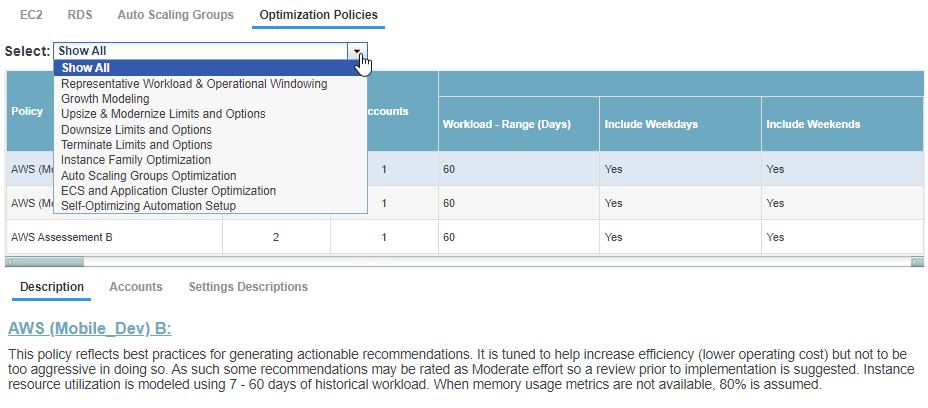
Policy settings applied to your cloud environments are displayed on the specific Optimization Policies page. Navigate to the policy settings summary page from:

Public Cloud menu > Cloud Provider > Optimization Policies tab.

<Note>
  Advanced policy settings are not displayed in the Kubex Console.
</Note>

<Accordion title="Figure: Optimization Policies Tab">
  <Frame>
    <img src="https://mintcdn.com/densify/ZhVKOFciWdW8G0wQ/images/docs/WebHelp_Densify_Cloud/Content/Resources/Images/Cirba_Reporting_Framework/03000079.png?fit=max&auto=format&n=ZhVKOFciWdW8G0wQ&q=85&s=d9e2aa53d0e99739a4d5c23dcfa8dc69" alt="" width="928" height="408" data-path="images/docs/WebHelp_Densify_Cloud/Content/Resources/Images/Cirba_Reporting_Framework/03000079.png" />
  </Frame>
</Accordion>

You can review your policy settings through the Kubex Console. Contact [support@kubex.ai](mailto:support@kubex.ai) to review and tune the settings to suit your business requirements.

<Accordion title="Video: Cloud Policy Overview">
  <iframe allowfullscreen="allowfullscreen" class="vidyard_iframe" frameborder="0" height="360" mozallowfullscreen="mozallowfullscreen" msallowfullscreen="msallowfullscreen" oallowfullscreen="oallowfullscreen" src="https://player.vimeo.com/video/371640427" webkitallowfullscreen="webkitallowfullscreen" width="630" />
</Accordion>

### Filtering Policy Categories

You can filter the settings to review, using the Select drop down menu at the top of the page. You can review a specific policy category or all categories, using the options in this menu. The policy settings displayed in the top pane as well as the Settings Descriptions tab, in the bottom pane, are defined by this filter.

<Note>
  Advanced policy categories are not displayed in this filter.
</Note>

### Using the Lower Pane

The top pane displays the active policies and their setting values. The lower pane displays policy settings for the policy or category selected in the top pane:

* Description--The description of the cloud policy, selected in the top pane.
* Accounts/Subscriptions/Projects--The accounts, subscriptions, or projects associated with the selected cloud policy. The Kubex analytics use the policy to generate recommendation for the listed accounts, subscriptions, or projects.
* Settings Descriptions--Descriptions of the standard policy settings, including the parent category and the default values.

<Carousel
  images={[
{
    src: "/images/docs/WebHelp_Densify_Cloud/Content/Resources/Images/Cirba_Reporting_Framework/03000082_607x324.png",
    caption: "Description Tab"
},
{
    src: "/images/docs/WebHelp_Densify_Cloud/Content/Resources/Images/Cirba_Reporting_Framework/03000081_607x324.png",
    caption: "Accounts/Subscriptions/Projects Tab",
},
{
    src: "/images/docs/WebHelp_Densify_Cloud/Content/Resources/Images/Cirba_Reporting_Framework/03000080_607x324.png",
    caption: "Settings Descriptions Tab",
},
]}
/>

<Note>
  Policies, defined in Densify, but not referenced by any cloud environments are not displayed in the Optimization Policies page.
</Note>

### Exporting Cloud Optimization Policies

You can export your cloud policy settings for external review. See [Exporting Report Data](../Densify_Com/Exporting_Report_Data) for details on using the Export to Excel feature.

When you export the content from this page, the data exported is specific to the selected cloud platform and is organized into the following tabs:

* Optimization Policies--Displays the cloud policies and their settings. This tab is similar to the top pane of the Optimization Policies page with "Show All" selected in the policy category filter.
* Description--Displays the descriptions of each cloud policy.
* Accounts/Subscriptions/Projects--This tab displays all of the accounts, subscriptions, or projects that are using one of the policies.
* Settings Descriptions--Displays all policy settings, their parent category, setting description and default value.