> ## Documentation Index
> Fetch the complete documentation index at: https://docs.kubex.ai/llms.txt
> Use this file to discover all available pages before exploring further.
# Optimizing Public Cloud
export const InlineImageWithText = ({src, href, children, width = 80, caption}) => {
return
 {children}
;
};
Kubex provides a simple, yet powerful interface to optimize your public cloud environment. The tree viewer offers an intuitive and efficient way to navigate and explore your public cloud environment. See Visualizing Your Data for details of navigation and other UI features.
Use the Connections button to monitor the status of data collection for each of your clusters. The Connections icon is the last option in the Cloud bar.
{children}
;
};
Kubex provides a simple, yet powerful interface to optimize your public cloud environment. The tree viewer offers an intuitive and efficient way to navigate and explore your public cloud environment. See Visualizing Your Data for details of navigation and other UI features.
Use the Connections button to monitor the status of data collection for each of your clusters. The Connections icon is the last option in the Cloud bar.
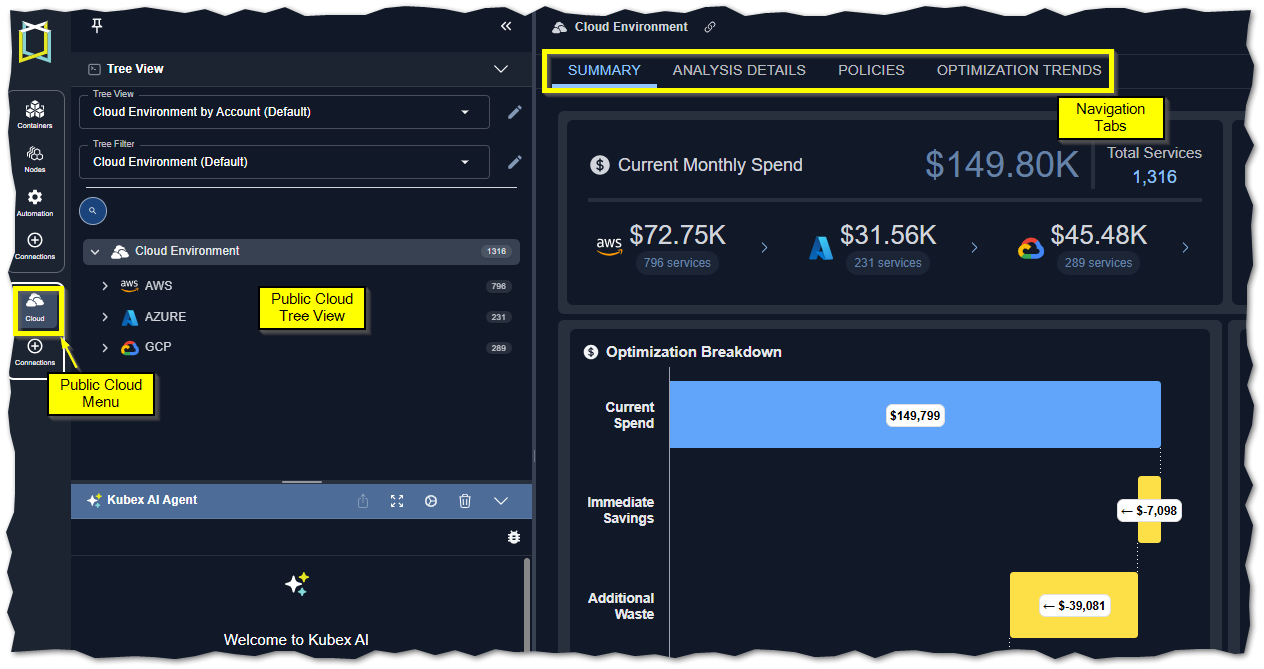 Various reporting tabs provide all the required features:
-
Summary
\--Shows a graphical summary of the selected scope of systems. Use the tree viewer to select the scope of systems to incude.
-
Analysis Details
\--Shows analysis details of the selected scope of your environment in various tabular views with utilization charts for a selected system.
-
Overview and Catalog Map
\--These tabs are only available when a single instance is selected.
#### Video Resources
Using the Tree Viewer