

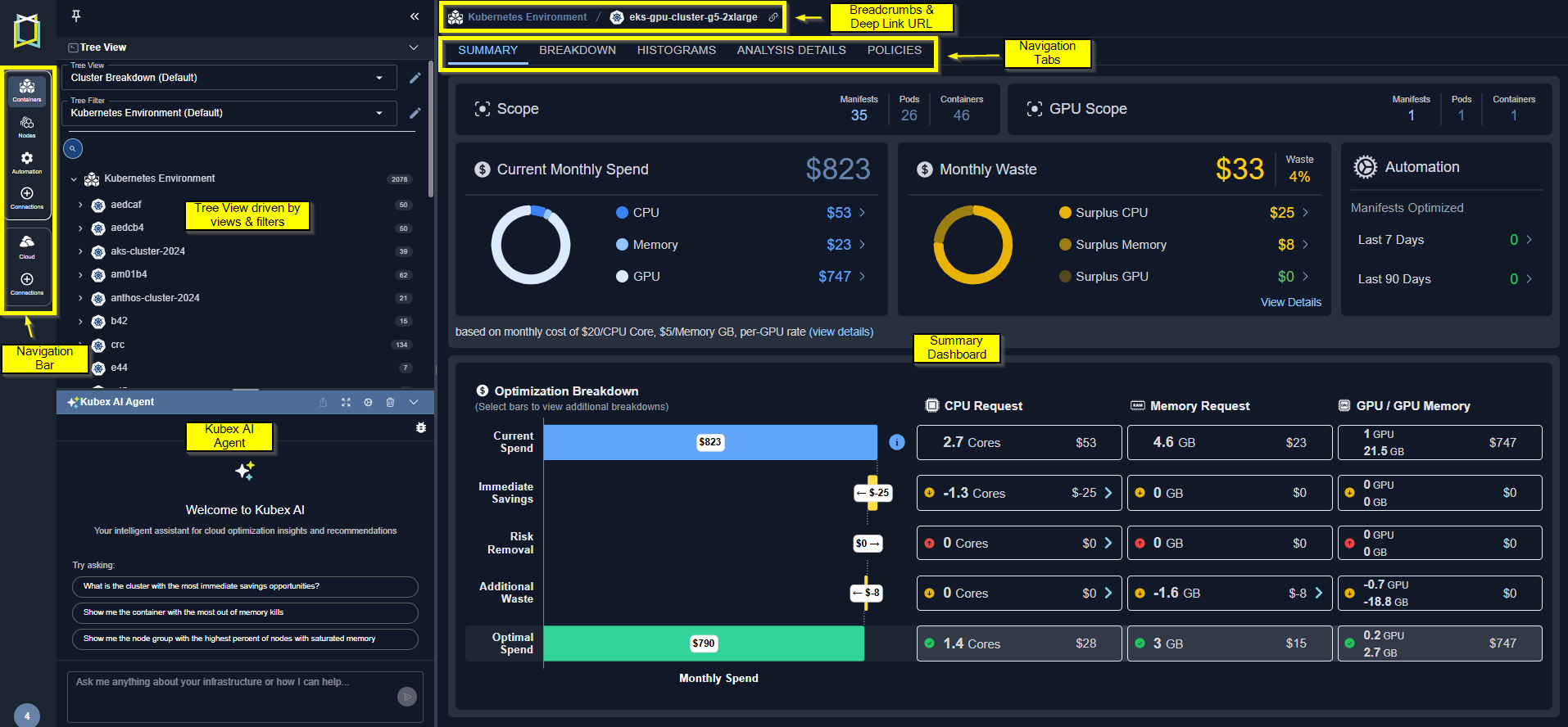
Figure: Kubex User Interface
Navigation Bar
Select Containers or Public Cloud from the navigation bar on the left side of the screen.Tree Viewer
Kubex provides a tree viewer for navigating through your environments efficiently. The tree viewer provides an intuitive and structured approach, organizing data hierarchically, allowing you to expand or collapse branches to review information without being overwhelmed.Additionally, search functionality, customizable views and filters further enhance usability, making data navigation more efficient.
Changing the View Mode
Using Deep Links
These links reference a specific page within Kubex, rather than simply linking to the home page or a top-level summary page. You can copy and send a link to another user from any page at any tree viewer level or with a specific instance selected. The recipient can then use the link to view the same page, or instance details in their view of Kubex. Figure: Deep Links
Navigating using the Breadcrumbs
The current navigation path to the currently displayed selection, is shown at the top of the page. Click on any part of the path to return to that level. This path is determined by the selected tree view and will update as you make selections in the tree viewer or on the page.
Figure: Breadcrumbs
Viewing the Summary Banner
Key metrics are displayed in a banner at the top of most pages. These values, specifically estimated waste, give you a quick indication that the selected environment needs further investigation.Containers Summary Banner

Figure: Containers Summary Banner
Using the Navigation Tabs
Kubex offers multiple tabs that allow you to analyze and explore your data from different perspectives. Based on your selection in the tree viewer various tabs are displayed to view the selected data. When multiple systems are selected you see:- Summary
- Shows you summary of how effectively your resources are being utilized.
- Breakdown
- Shows you a breakdown of the items, selected in the tree view, providing a high-level comparison.
- Histograms
- Shows you the selected scope of your environment as set of histograms.
- Analysis Details
- Shows analysis details of the selected scope of your environment in various tabular views with utilization charts for selected systems.
- Policies
- Shows you details of the policy that was used to generate your analysis results.
- Overview
- Shows you the utilization and recommendation details for the selected container.
- GPU
- Shows you the utilization details for the selected GPU instance.
- Metrics Viewer
- Shows you collected and analyzed data for a specific container.
Video Resources
Chart Selection Controls
Chart Selection Controls
Kubex UI Overview
Kubex UI Overview
Searching for a System
Searching for a System
Setting Filters in Columns
Setting Filters in Columns
Using Histograms
Using Histograms
Using the Tree Viewer
Using the Tree Viewer
Using the Utilization Charts
Using the Utilization Charts