> ## Documentation Index
> Fetch the complete documentation index at: https://docs.kubex.ai/llms.txt
> Use this file to discover all available pages before exploring further.

# Data Collection Status

export const InlineImageWithText = ({src, href, children, width = 80, caption}) => {
  return <span className="inline-flex items-center gap-3 align-middle">
            <a href={href} className="inline-block border-b-0">
                <Frame caption={caption}>
                    <img src={src} alt="" className="object-contain align-middle " width={width} style={{
    minWidth: width
  }} />
                </Frame>
            </a>
            <span className="align-middle">{children}</span>
        </span>;
};

## Data Collection Status Details

<InlineImageWithText src="/images/docs-kubex/Content/Cloudex/03000109_64x59.png">
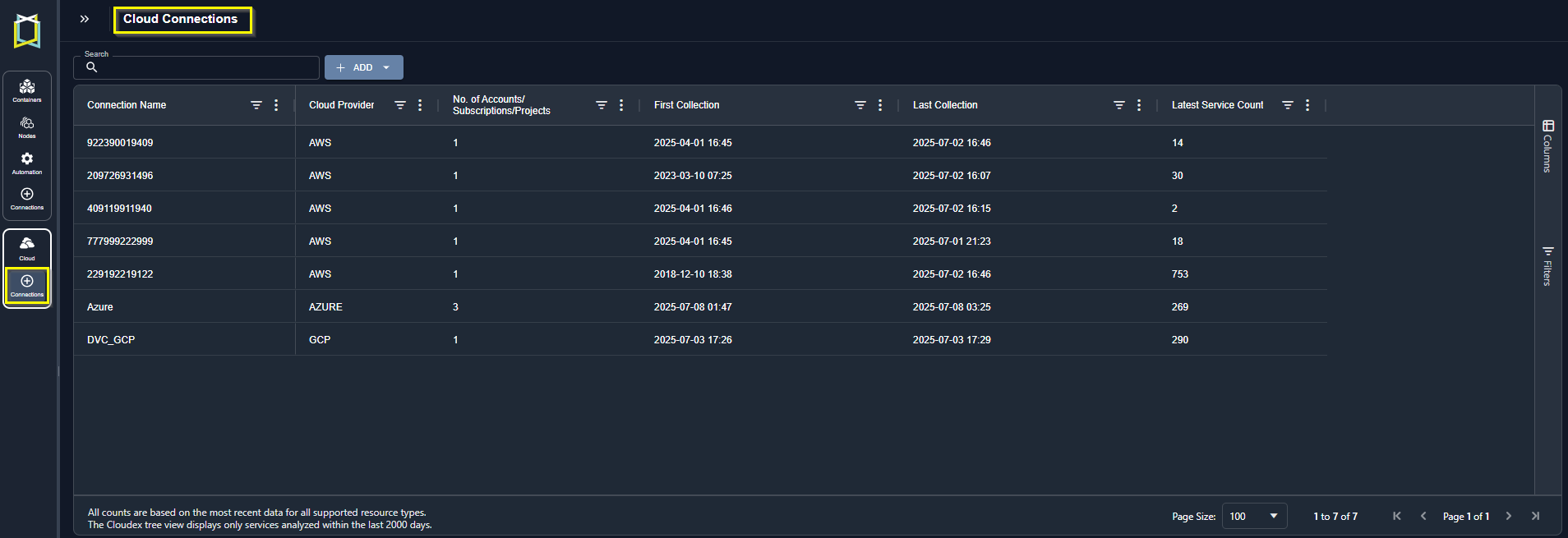
  <p>Access this page from the side panel. The Connections icon is the last option in the Cloud bar.</p>
  <p>You can monitor the status of data collection for each of your clusters, from this page.</p>
</InlineImageWithText>

<Frame caption="Figure: Cloud Collection Status Page">
  <img src="https://mintcdn.com/densify/2kKSl7LRQlQk-1qW/images/docs-kubex/Content/Cloudex/03000030_762x323.png?fit=max&auto=format&n=2kKSl7LRQlQk-1qW&q=85&s=048baca467908f222eaee27e771efe57" alt="" width="1908" height="655" data-path="images/docs-kubex/Content/Cloudex/03000030_762x323.png" />
</Frame>

See [Using Table Column Features](/docs-kubex/Content/Kubex/Using_Table_Column_Features) for details on setting filters and customizing views of the table's content.

## Standard Data Collection

Kubex collects configuration and utilization data from your public cloud environments and then analyzes the data to provide resizing recommendations to run your cloud-based applications on the correct infrastructure.<br />

Before creating a connection you need to grant access to Kubex so that it can connect to your accounts and collect data. Granting access is slightly different for each of the supported cloud providers:

<ul>
  <li>
    <a href="/docs/WebHelp_Densify_Cloud/Content/Data_Collection_for_Public_Cloud_Systems/AWS_Data_Collection_Using_a_CloudFormation_Template">
      AWS Data Collection Using a CloudFormation Template
    </a>
  </li>

  <li>
    <a href="/docs/WebHelp_Densify_Cloud/Content/Data_Collection_for_Public_Cloud_Systems/AWS_Data_Collection_Prerequisites_for_an_IAM_Role__CloudWatch_only_">
      AWS Data Collection Using IAM Roles Prerequisites
    </a>
  </li>

  <li>
    <a href="/docs/WebHelp_Densify_Cloud/Content/Data_Collection_for_Public_Cloud_Systems/Microsoft_Azure_Data_Collection_Prerequisites_for_a_Service_Principal">
      Microsoft Azure Data Collection Prerequisites
    </a>
  </li>

  <li>
    <a href="/docs/WebHelp_Densify_Cloud/Content/Data_Collection_for_Public_Cloud_Systems/Google_Cloud_Platform_Data_Collection_Prerequisites">
      Google Cloud Platform Data Collection Prerequisites
    </a>
  </li>

  <li>
    <a href="/docs/WebHelp_Densify_Cloud/Content/Data_Collection_for_Public_Cloud_Systems/Oracle_Cloud_Infrastructure_Data_Collection_Prerequisites">
      Oracle Cloud Infrastructure Data Collection Prerequisites
    </a>
  </li>
</ul>

Once you have completed the prerequisites you can create the connections using the Add button. See the following for details.

<ul>
  <li>
    <a class="MCXref xref" href="/docs-kubex/Content/Cloudex/Data_Collection_AWS_Connections">
      Creating AWS Cloud Connections
    </a>
  </li>

  <li>
    <a class="MCXref xref" href="/docs-kubex/Content/Cloudex/Data_Collection_Azure_Connections">
      Creating Azure Cloud Connections
    </a>
  </li>

  <li>
    <a class="MCXref xref" href="/docs-kubex/Content/Cloudex/Data_Collection_GCP_Connections">
      Creating GCP Cloud Connections
    </a>
  </li>

  <li>
    <a class="MCXref xref" href="/docs-kubex/Content/Cloudex/Data_Collection_OCI_Connections">
      Creating OCI Cloud Connections
    </a>
  </li>
</ul>

## Reviewing Data Collection Status

Once the connections are created, data will be collected and stored for detailed analysis. As data is collected the Connections table is populated/updated with the status of each connection.<br />

Data collection details will appear in this table within a few minutes, but your instance-specific data will not appear in the tree viewer until it has been analyzed, usually within 24-hrs. This is also the case for all reports/tabs that show the analyzed data and resulting recommendations.

<Accordion title="Table: Connections Table">
  <table style={{ width: "100%", borderCollapse: "collapse" }}>
    <colgroup>
      <col style={{ width: "119px" }} />

      <col style={{ width: "394px" }} />
    </colgroup>

    <thead>
      <tr>
        <th style={{ verticalAlign: "middle" }}>Column</th>
        <th style={{ verticalAlign: "middle" }}>Description</th>
      </tr>
    </thead>

    <tbody>
      <tr>
        <td style={{ verticalAlign: "middle" }}>Connection Name</td>

        <td style={{ verticalAlign: "middle" }}>
          The name of connection, as specified when you create the connection.

          <br />

          If the name is longer than the column width, hover over the name to see the full string in a popup.
        </td>
      </tr>

      <tr>
        <td style={{ verticalAlign: "middle" }}>Cloud Provider</td>

        <td style={{ verticalAlign: "middle" }}>
          The name of the public cloud provider.
        </td>
      </tr>

      <tr>
        <td style={{ verticalAlign: "middle" }}>No. of Accounts | Subscriptions | Projects</td>

        <td style={{ verticalAlign: "middle" }}>
          The specific subscription or project name or account number.
        </td>
      </tr>

      <tr>
        <td style={{ verticalAlign: "middle" }}>First Collection</td>

        <td style={{ verticalAlign: "middle" }}>
          The date and time on which data was first collected.
        </td>
      </tr>

      <tr>
        <td style={{ verticalAlign: "middle" }}>Last Collection</td>

        <td style={{ verticalAlign: "middle" }}>
          The date and time on which data was last collected.
        </td>
      </tr>

      <tr>
        <td style={{ verticalAlign: "middle" }}>Latest Service Count</td>

        <td style={{ verticalAlign: "middle" }}>
          The number of services that were discovered during the last collection. This value is populated only after data collection has been run once, and immediately after a connection has been created.
        </td>
      </tr>
    </tbody>
  </table>
</Accordion>

The last collection data and service count are updated each time data is collected. This is done daily, on a schedule that usually runs overnight.