

Configuring GCP Connections
- Click the Add button and select GCP.
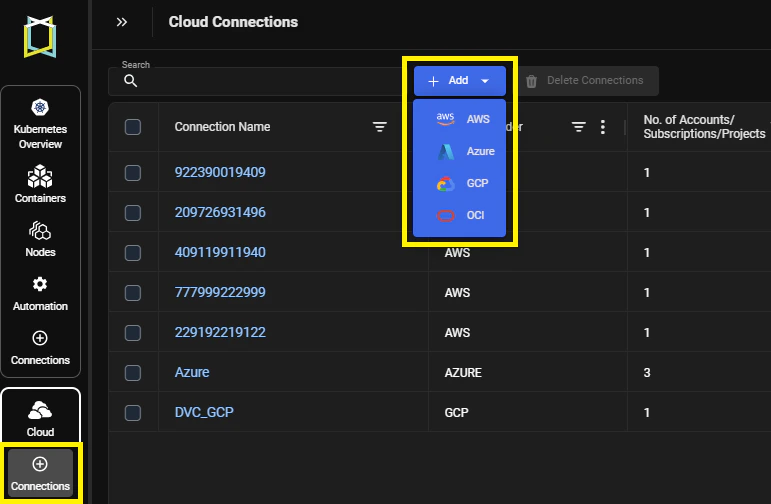
Figure: Accessing the Add Button
- Enter the GCP-specific connection parameters.
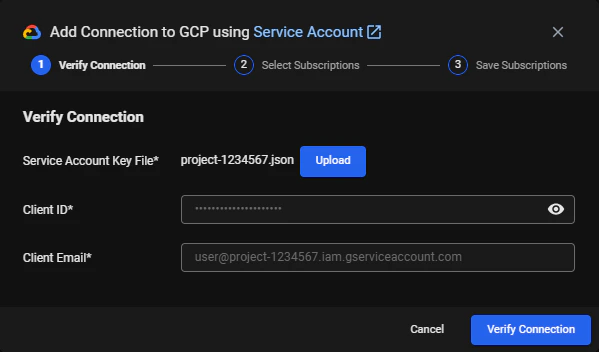
Figure: GCP Connection Window
Table: GCP Connection Parameters
Field Description Service Account Key File The JSON key file for the service account you created in GCP for Kubex data collection. Client ID The client ID for the service account you created in GCP for Kubex data collection. This is auto filled when you upload the service account key file. Client Email The client email for the service account you created in GCP for Kubex data collection. This is auto filled when you upload the service account key file. - Verify your connection by clicking the Verify Connection button.
- If the credentials are valid, you will be connected and authenticated.
- If the credentials cannot be validated, then review the displayed error message and correct your credentials. See Troubleshooting GCP Cloud Connections for details.
- Once the account is verified, the available projects that are associated with the service account are listed. Select the projects that you want to include in this connection and click Next.
- Review the connection details and add a name for your connection. Click Save to save the connection.
- If you want to connect another tenancy, click Add and repeat these steps to configure the connection.
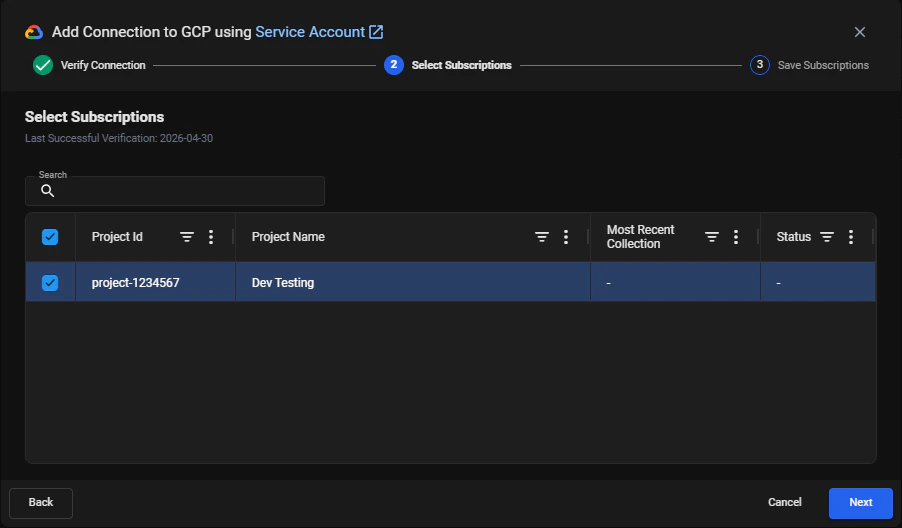
Figure: Select GCP Project Window
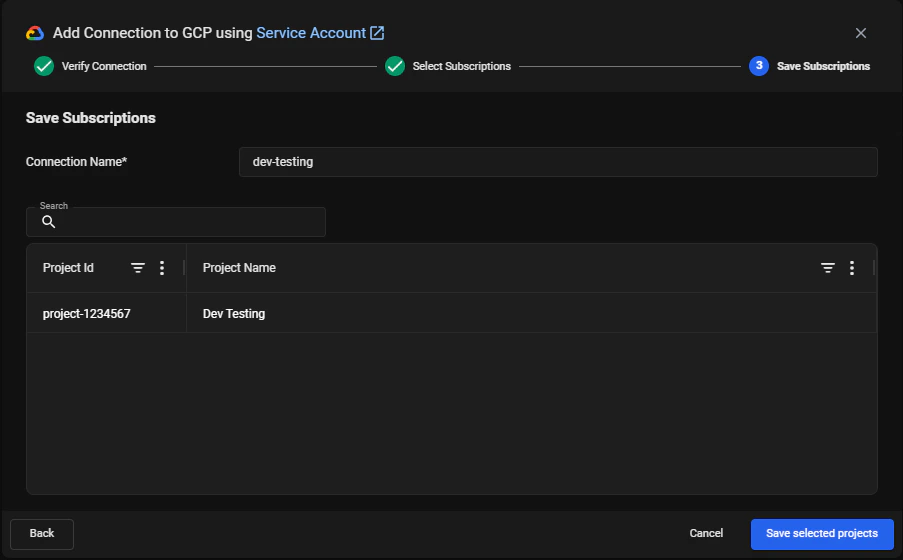
Figure: Save GCP Connection Window